To prepare a Shopify store for Black Friday, set up one offer in your Shopify admin and show it on your store pages. Then prepare the cart and checkout, schedule the start, and test one full order. Black Friday 2026 is on Friday 27 November, and this guide gives the six steps in order. You may also see the name BFCM for this sale: here is what BFCM means.
What Changed on Shopify Since Black Friday 2025
Three changes on Shopify affect how you prepare this year. If this is your first Black Friday, you can go directly to step 1.
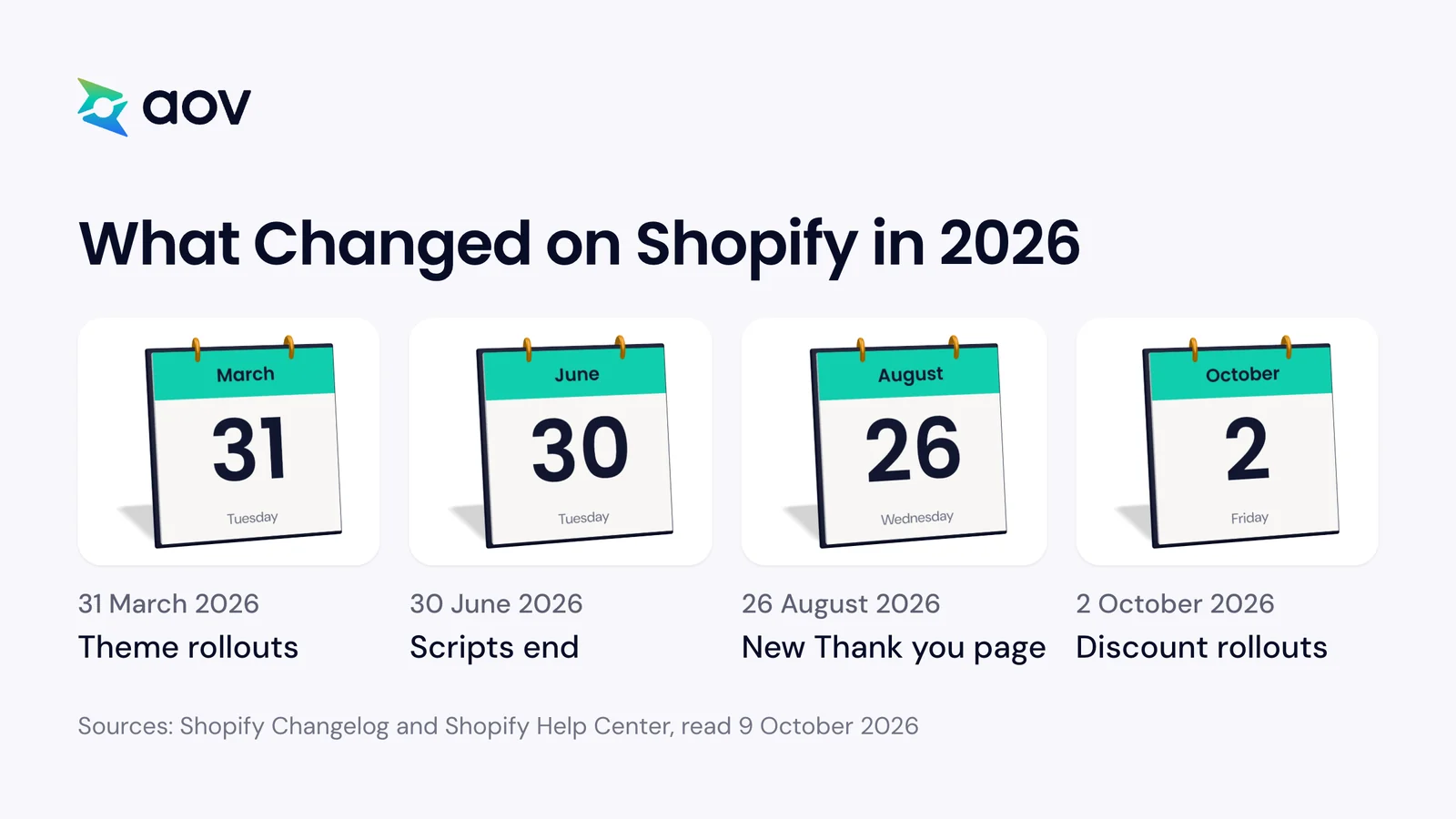
- 31 March 2026: Shopify added Rollouts. A rollout is a set of changes that starts on a date you choose, for example a change to your theme. Since 2 October 2026, you can also include discounts in a rollout. Step 5 explains how to use one.
- 30 June 2026: Shopify Scripts stopped working. If a script created a discount in your store, Shopify says to create it again with Shopify Functions. For a simple offer, the discounts in step 2 may be enough.
- 26 August 2026: This was the deadline to move to the new Thank you and Order status pages. Shopify moved the remaining stores to the new pages automatically. Additional scripts for tracking aren't supported on the new pages, so step 6 includes a check of your order tracking.
Step 1: Choose One Main Offer and Its Dates
Before you open your Shopify admin, decide three things: your main offer, the products in it, and its start and end dates. The sale period starts on Black Friday, Friday 27 November 2026, and ends on Cyber Monday, Monday 30 November. We calculated these dates from the official US holiday calendar and the definition from Shopify.
Shopify includes three types of discount:
- Amount off: a percentage or a fixed amount off one product, a collection, or the whole order.
- Buy X get Y: you set a purchase requirement, and the customer receives a discount when they meet it.
- Free shipping: free shipping for the customers who meet the criteria you set.
Choose your products from the stock you have now. Shopify notes that ordering inventory often needs to start months earlier. To compare offers, read our Black Friday sale ideas. If you have little time, follow the order of tasks in our Black Friday checklist.
Step 2: Set Up the Offer in Shopify Admin
You create each of these discounts on the Discounts page of your Shopify admin. Shopify includes this task in its guide to preparing for seasonal sales.
Create the Discount
A discount in Shopify is a discount code or an automatic discount. Customers enter a discount code at checkout. An automatic discount is applied in the cart and at checkout when the customer meets its conditions. Shopify says automatic discounts are common for site-wide sales.
To create an amount off discount, follow the steps from Shopify:
- In your Shopify admin, go to Discounts and click Create discount.
- Select the type: Amount off products or Amount off orders.
- Under Method, select Automatic discount or Discount code.
- Enter the value as a percentage or a fixed amount, then choose the products or collections.
- If you want a minimum, select Minimum purchase amount or Minimum quantity of items.
- In Combinations, select the discounts that can apply together with this one.
- In Active dates, set the start date, then click Set end date.
For example, for 20% off one collection, select Amount off products, enter 20 as the percentage, and choose the collection.
What Shopify Discounts Can and Cannot Do
The built-in discounts cover the offers in this table. Each one has a rule to know before you choose it.
| Offer | With Shopify alone | Know this first |
|---|---|---|
| A percentage or a fixed amount off | Amount off discount | A maximum of 25 automatic discounts can be active, apps included |
| Buy X get Y, or a free gift with a product | Buy X get Y discount | Shopify never adds the gift to the cart: the customer adds it |
| A free gift above a spending level | Buy X get Y discount with a minimum purchase amount | The customer adds the gift here too |
| A lower price for buying more | Amount off discount with a minimum quantity of items | For several levels, Shopify points to discount apps |
| Free shipping | Free shipping discount | You can exclude shipping rates above an amount you set |
| A fixed bundle or a multipack | Shopify Bundles, a free app from Shopify | The bundle price doesn't change when a product price changes |
| A sale price on the product page | Compare-at price | A discount shows no crossed-out price there without an app or custom work (step 3) |
One more rule concerns stores that used Shopify Scripts: discounts made with scripts stopped working on 30 June 2026.
Decide Which Discounts Can Combine
Discounts can apply to the same order when you allow it for each discount. Shopify sorts discounts into three classes: product, order, and shipping. In the Combinations section of a discount, you select the classes it can combine with. Product discounts apply first, then order discounts, and shipping discounts apply last.
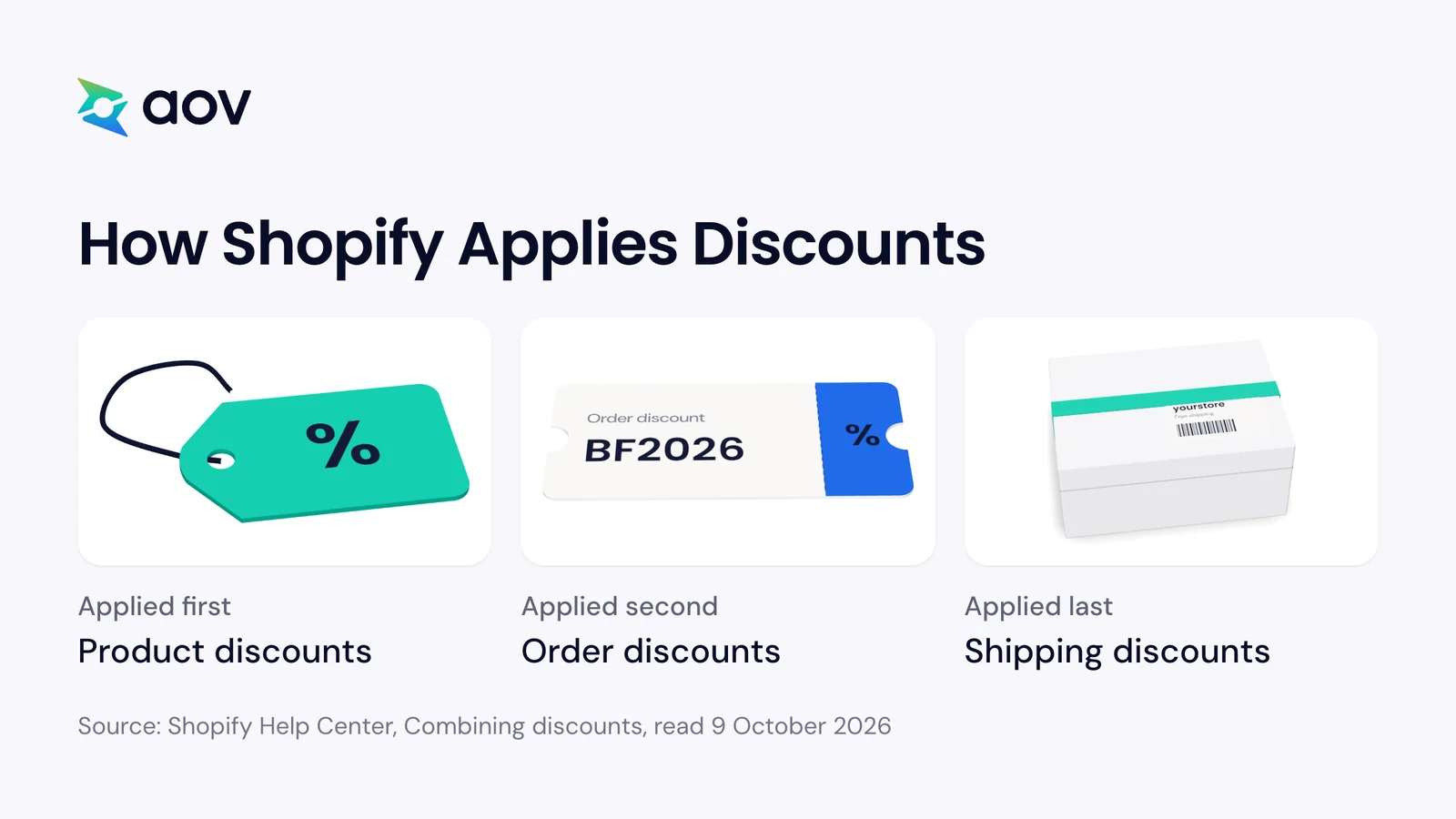
Two limits apply. A customer can use a maximum of 5 product or order discount codes and 1 shipping discount code on one order. Two combinations are available only to eligible stores: a product discount with an order discount, and two order discounts together.
A member of the Shopify Community described what can happen when nobody tests the combinations. Their store had an automatic 20% discount on a collection, a code sent by email, and free shipping over $75. "On a handful of carts all three landed at once and we shipped orders below cost," they wrote in September 2026.
So write a list of every discount that will be active at the same time. Include free shipping and any discount that an app applies. You'll use this list in step 6. For more detail, read our guide on how to combine discounts on Shopify.
When an App Helps: Gifts, Reward Levels, and Bundles
An app helps when your offer needs more than the built-in discounts. Shopify says that stores with tiered discounts, which give a larger reward at each level, can use a discount app.
At AOV.ai, we make two apps for these offers: AOV.ai Free Gifts and AOV.ai Bundles. Each line below names one offer, the campaign that runs it, and the condition to know first.
With AOV.ai Free Gifts:
- A free gift when the customer buys a product: a Buy X Get Y campaign. The app can add the gift to the cart, or the customer can choose it in a pop-up.
- The same product as the gift (BOGO: buy one, get one): the BOGO option of a Buy X Get Y campaign. It gives one gift in total by default, even for several qualifying products, and it isn't available on Shopify POS.
- A free gift above a cart value: a Gift with Cart Value campaign. The cart value is checked with original prices, before discounts.
- A gift for one collection or for a number of items: a Gift with Collection Value or Gift with Quantity Purchase campaign. The minimum is an amount spent, or a number of items.
- Rewards at several levels: a Milestone Rewards campaign, with free shipping, a free gift, or an order discount at each level. Only one Milestone campaign can be active in a store at a time.
With AOV.ai Bundles:
- A reward for buying more units of one product: Volume Discount. It fits products that customers buy again, such as refills.
- Add-ons shown on a product page: Frequently Bought Together. It fits products that go together.
- A bundle the customer builds: Bundle Builder, with larger savings at each level. The bundle has its own page: link to it from your menu or home page.
- A fixed kit sold as one product: Product Fixed Bundle. The kit is its own product in your store.
Add a new app early, and test it in your store before the sale starts. Our guides explain the setup for free gift with purchase on Shopify and how to create product bundles on Shopify. To compare more apps, see our list of the best apps for Black Friday.
Step 3: Show the Offer on Your Store Pages
Customers should see the offer before they reach the checkout. Show it on your home page, your collection pages, and your product pages.
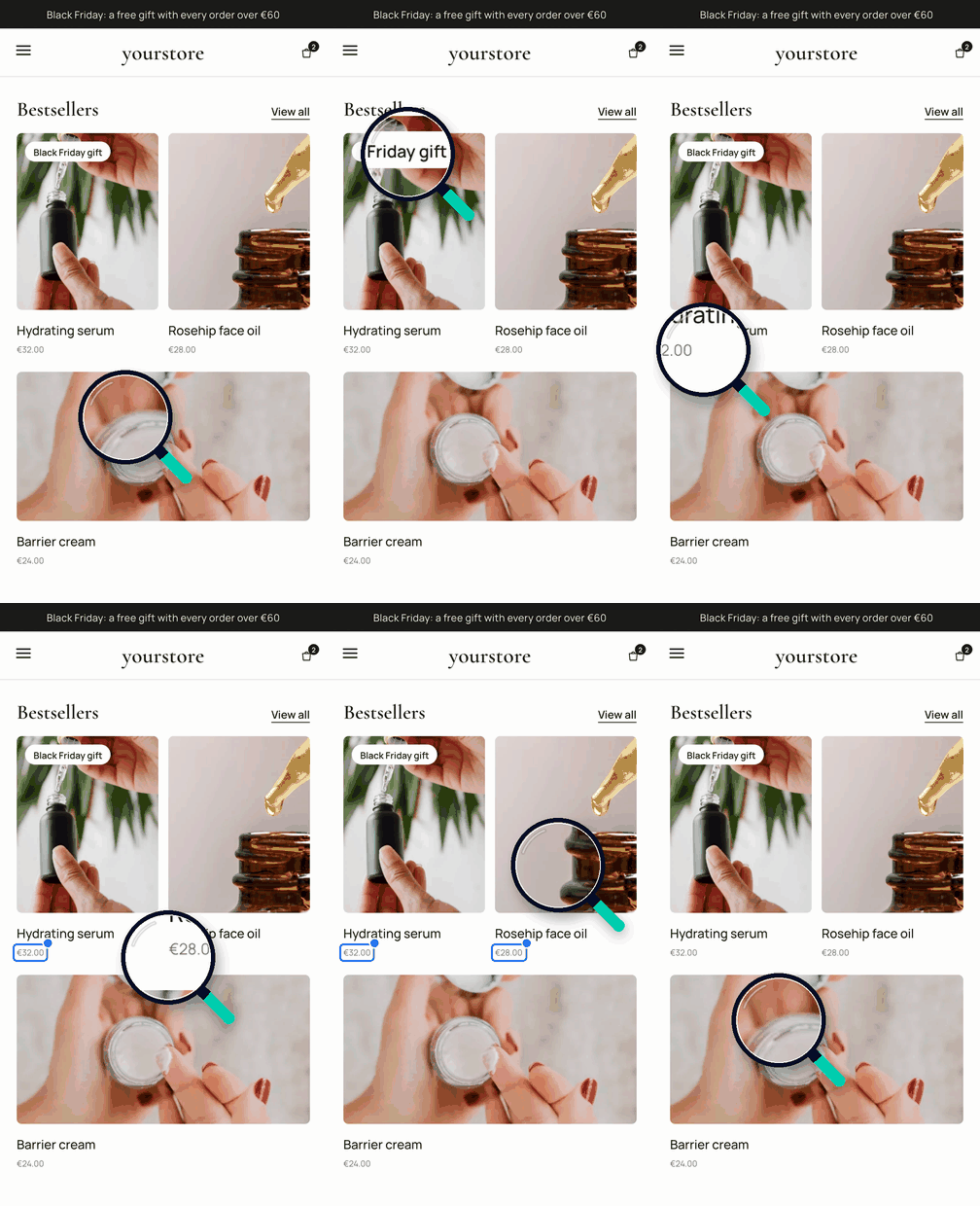
Sale prices. To set a sale price, enter the original price in the Compare-at price field and the new price in the Price field. Both prices can then appear on product pages and collection pages. Where they appear depends on your theme. Before you show an earlier price in the EU or the UK, read the price rules in our Black Friday sale ideas.
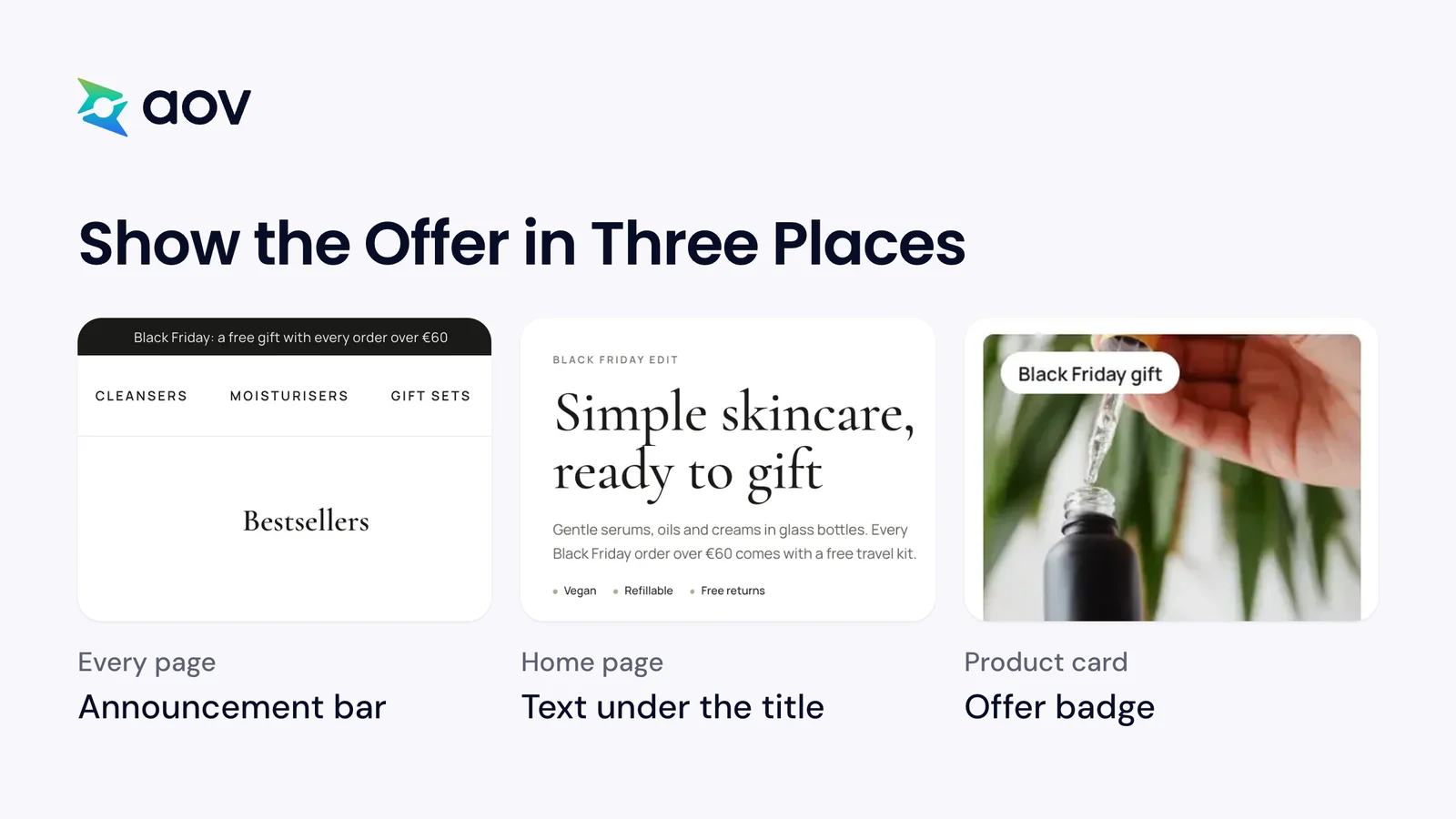
Discounts. A discount code or an automatic discount shows differently. Its saving always appears as a crossed-out price at checkout. On product pages and collection pages, a crossed-out price needs a discount app or custom work from a Shopify Partner. So write the offer in words where customers look first: the announcement bar, the text of your home page, and a badge on your products.
A sale collection. In its Black Friday checklist, Shopify suggests a collection with the condition "Compare-at price is not empty". This keeps the collection updated when you add or remove a sale price. Link the collection from your home page.
Your home page. The theme editor of Shopify lets you update your home page without code. Before a large change, make a copy of your theme, so you can return to the earlier version. You can also prepare the change in a rollout, as step 5 explains.
Bundle pages. In AOV.ai Bundles, a Bundle Builder offer is on its own page. Link to it from your menu, your home page, or a product page, so customers can find it. A Product Fixed Bundle is its own product in your store.
Step 4: Prepare the Cart and Checkout
Four short tasks prepare the last part of the purchase.
- Activate accelerated checkouts. These are payment methods such as Shop Pay, Apple Pay, and Google Pay. They save the payment and shipping information of returning customers, so these customers complete payment faster.
- Show your shipping and return policies. You can add or generate store policies in your Shopify admin. Shopify can generate these policies in English, and some of them in French, Italian, and Spanish. For a store in another language, you need to write your own policies. Then update your FAQ page with your shipping times, your return policy, and the terms of the sale.
- Hide products that are out of stock. First activate inventory tracking. Then add the condition "Inventory stock is greater than 0" to your collections, as this guide from Shopify explains. This method doesn't work in a collection where Products must match is set to any condition.
- Check the speed of your pages. Shopify hosts your store on fast, global servers. Your part is your theme, the apps you installed, and any other code you added. Our Black Friday checklist lists the speed checks.
Step 5: Schedule the Start and the End
Schedule the sale in advance, so it starts and ends without a manual step on the day.
Discounts. Every discount has a start date, and you can set an end date. The times follow the time zone of your store. So a discount with the start date 27 November starts at 12:00 am on that day, in the time zone of your store. Set the end date for the end of your sale, for example the end of Cyber Monday.
Theme changes. A rollout is a scheduled set of changes to your theme, your checkout, and your discounts. For a sale, choose the Event type: it applies your changes for a set period, then returns your store to its earlier state. You find rollouts under Markets > Rollouts in your Shopify admin.
Rollouts are available on the Basic plan or higher, but they don't work with the older themes that Shopify calls vintage themes. One detail matters here: a discount in a rollout keeps its own active dates. So give the discount and the rollout the same dates.
Why schedule. On Cyber Monday 2025, some store owners couldn't open their Shopify admin for a time. Shopify explained the problem on the same day, as CBS News reported on 1 December 2025. "We kept checkout and storefronts online, but access to admin interfaces was temporarily unavailable for some merchants," it said.
So don't plan a manual step in your admin for the first minutes of the sale. Schedule what you can before the day.
Step 6: Test One Full Order
Place one order from the product page to the confirmation email before the sale starts. Shopify has a test mode for payments, and you aren't charged for the orders you place in it. End test mode right after the test, because customers can't place real orders while it's active. You can also place a real order, then cancel and refund it, but your payment provider may charge a fee.
A discount applies only between its start date and its end date. So for the test, create a discount code that only you know, with the same settings and a start date of today.
Check these seven points:
- The discount amount at checkout. Shopify says to test discount codes and automatic discounts at checkout.
- The gift in the cart. Shopify doesn't add the gift of a buy X get Y discount. So add it the way a customer would, and check its price.
- One cart that meets every offer. Use your list from step 2, and add products until every discount applies. Then check the total, as the Shopify Community member advised.
- The sale price on collection pages. Check that the variants of a product have consistent compare-at prices. If they don't, the collection page won't show the product as on sale.
- The order emails. Check that the order confirmation email and the shipping email arrive.
- Your order tracking. Additional scripts don't work on the new Thank you page. Shopify says to replace them with pixels, the tracking tools that apps add, so check that your analytics tool records the test order.
- The same order on your phone. Shopify says most BFCM traffic comes from phones.
To find the problems in your own store, you can also get a free Shopify store audit from AOV.ai. During the four days of the sale and after Cyber Monday, follow the tasks in our Black Friday checklist.
Check Your Own Store
A test order shows that the path you tested works. It can't show every problem in your store. At AOV.ai, we offer a free Shopify store audit. It helps you identify the problems that stop customers from buying, so you can resolve them before the sale begins.
What stops customers from buying?
Free Shopify store audit from AOV.ai
- Check your own store
- Identify the problems
- Resolve them before the sale begins
Frequently Asked Questions
How Do I Set Up a Black Friday Sale on Shopify?
Create a discount on the Discounts page of your Shopify admin, as a discount code or an automatic discount. Set its start date and its end date for the sale period, then test it at checkout. Step 2 and step 5 of this guide give the details.
How Do I Set Up 50% Off on Shopify?
Create an amount off discount, and enter 50 as the percentage. Then choose where it applies: one product, a collection, or the whole order. You can also add a minimum purchase amount, so the discount applies only above a spending level.
Why Does a Discount Not Apply at Checkout?
Check four points. First, the cart must contain every product of the offer, including the gift of a buy X get Y discount. Second, the cart must reach the minimum purchase amount or the minimum quantity. Third, the discount starts on its start date, in the time zone of your store. Fourth, the discount may not be set to combine with another discount in the cart.