To set up AOV.ai Bundles, turn on the app embed in your theme once, then create each offer from the app's offer list. Click Create new offer, pick an offer type, and complete its form. This guide covers fixed bundles, mix and match, bundle builder, volume discounts, and Frequently Bought Together (FBT), and where each one appears. Still deciding which bundle to make? Read our guide on how to create bundles on Shopify.
Before You Start: Theme, App Embed, and App Blocks
AOV.ai Bundles needs three things before an offer can show. You need an Online Store 2.0 theme, the app embed turned on, and an app block for widgets on product pages.
Theme. AOV.ai Bundles works with Online Store 2.0 themes, such as Dawn and Horizon. On an older (vintage) theme there is no block to add, so a bundle will not show on your store.
App embed. To turn on the AOV.ai Bundles app embed, open the app's home page and click Enable App on the App embed card. Shopify's theme editor opens with the App embeds tab selected. Find AOV Bundle, turn it on, and click Save in the top right of the editor. The card on the app's home page shows Inactive until the embed is on.
The App Embed and Theme Integration guide calls the embed "a one-time toggle per theme". When you switch themes, for a new design or a test, turn it on again on the new theme before you publish it.
App blocks. A widget on a product page also needs its own app block. In the theme editor, switch to the Product template, click the section where the widget should go, and click Add block. Then choose the widget from the Apps group, such as AOV Volume Discount or AOV Frequently Bought, and click Save.
The Setup guide on the app's home page lists four tasks to get the app live. They are Enable app, Create your first offer, Visualize how it appears on your store, and Get better results. The help center's Quick Start follows the same tasks.
Which AOV.ai Bundles Offer Should You Set Up?
Pick the offer type by what you want the customer to do, and by where the offer will appear. Some types sit on your product pages, while others get a page of their own that you must link to.
| Your goal | Offer type | Where customers see it | Before customers see it |
|---|---|---|---|
| Sell a set kit as one product | Product fixed bundle | Its own product page | Link to the bundle page from your menu, homepage, or product pages |
| Let customers fill set slots | Mix-and-match bundle | Its own bundle page | Link to the page; each slot needs at least one product |
| Let customers pick from a list, with more savings per item | Bundle Builder | Its own bundle page | Link to the page; have at least 2 products to include |
| Reward more units of one product | Volume discount | The product page | Add the AOV Volume Discount app block |
| Suggest add-ons on a product page | Frequently bought together | Pages of the trigger products or collections you pick | Add the AOV Frequently Bought app block |
You can run any combination of offer types at the same time, and Volume Discount and FBT on the same product is supported. The help center's Choosing an Offer Type page compares the types by goal. For planning help, read our guides to the build-your-own bundle, quantity discounts, and frequently bought together offers. Still choosing an app? Compare Shopify bundle apps by bundle type, rating, and price.
The Select offer type screen also has Product recommendation. It shows related products on the pages of the trigger products you pick, once you add the app block. Its discount is off by default. Its steps are in the help center's Product Recommendation guide.
How to Create Any Offer in AOV.ai Bundles
Every offer in AOV.ai Bundles starts on the same two screens: the offer list and the Select offer type screen. Only the form after that changes with the offer type.
- Open the offer list. In your Shopify admin, open AOV.ai Bundles from your apps, then click Offer. The page that opens is called Offer list, and the app may show its name as AOV.ai Bundle.
- Start a new offer. Click Create new offer in the top right.
- Pick the offer type. On the Select offer type screen, find the card for your offer and click Create. Each card also has a Preview link.
- Complete the form. Volume discount, Frequently bought together, Bundle Builder, and Mix-and-match bundle have two tabs, Settings and Display. At the bottom of the Settings tab, click Next: Display setting. Product fixed bundle uses one page.
- Save and check the status. After you save, the Offer list shows each offer with its status. An offer is visible on your store only when its status is Active and the current time falls inside its schedule.
The schedule uses your store's time zone. The first field of each form is Deal name. On most types it is an internal name, but on a fixed bundle customers see it, as the steps below explain.
Each offer creates its own Shopify discount code behind the scenes, so customers don't type a code. The Combinations setting decides whether the offer's discount can stack with other Shopify discounts a customer already has.
How to Set Up a Fixed Bundle
A Product Fixed Bundle sells a set kit of products as one product, at a discount, on its own product page. These steps use the Create Product Fixed Bundle page, which has no tabs.
- Offer information: enter the Deal name. Customers see this name as the product name on your store.
- Applicable products: search for each product in the kit, or click Browse. A fixed bundle holds up to 30 products, 3 product options, and 2,048 variants in total.
- Offer details: keep Discount on, choose the Discount method (Percentage or Fixed amount), enter the Value, and click Apply.
- Variants: the original price is the sum of the products, and the displayed price is the bundle's sale price. To change it, type a new Displayed price for each variant.
- Show on included products page (optional): this adds a small widget on the page of each product in the kit, promoting the bundle.
- Status: after you save, the offer's page has a Status card. Set it to Active, as the app's note says, to show the bundle on your store.
What decides the result. The price and the links decide most of it. Customers won't see the bundle on your existing product pages, so link to it from your navigation, homepage, or other product pages. When the bundle doesn't show, check that its status isn't Draft and that every product in it is in stock.
Check it. On the offer's page, click Preview on Online Store, then add the bundle to the cart and check the price. The help center's fixed bundle setup guide lists every field.
How to Set Up a Mix and Match Bundle
A Mix-and-match bundle lets customers fill set slots, one product per slot, to build a pack at a discount. It creates its own bundle page that you link to from your store.
- Deal name: enter the bundle name. The Mix & Match setup guide says customers see this name on the storefront.
- Bundle option: each option is one slot. Enter an Option name, click Select product, and pick the products a customer can choose for that slot. A slot needs at least one product before you can save.
- More slots: click Add bundle option for a new slot, or Duplicate to copy one.
- Discount bundle: choose the Discount type and enter the Value. With Fixed price, you set one price for the whole bundle and the app works out the discount.
- Combinations: select the discount types this offer can combine with: Product discounts, Order discounts, or Shipping discounts.
- Redirect (optional): open Advance settings at the bottom of the Settings tab. Redirect after Add to cart sets where customers go after they add the bundle: the current page, the cart page, or checkout.
- Display: click Next: Display setting. If a note asks you to add the widget to your theme, click Add widget.
What decides the result. The discount type and the slots decide what customers pay. With Fixed price, you choose the final price of the pack yourself. The page link decides whether customers find the bundle at all.
Check it. Open the bundle page from the link you added, fill every slot, and check the total in the cart. Not sure whether you need mix and match or a Bundle Builder? Our build-your-own bundle guide compares the two.
How to Set Up a Bundle Builder
A Bundle Builder lets customers pick products from a list you set, with a bigger discount as they add more items. It creates its own bundle page, and customers won't see it on your existing product pages.
Before you start, you need at least 2 products in your store to include, and the theme app embed turned on.
- Deal name: enter an internal name. Customers won't see it.
- Bundle products: under Customer buys, choose Specific products or Specific collections, then select them. Turn on Group by category to group the products in the widget by their Shopify category.
- Discount tier: choose the discount type, then set each tier as Buy at least a number of items and Save an amount. Click + Tier to add another tier.
- Advance settings (optional): open this section for the extra options. The help center's guide covers discount combinations and the schedule for this type.
- Display: click Next: Display setting. If you turn on Show on included products page, add the Bundle builder widget to your default product template in the theme editor.
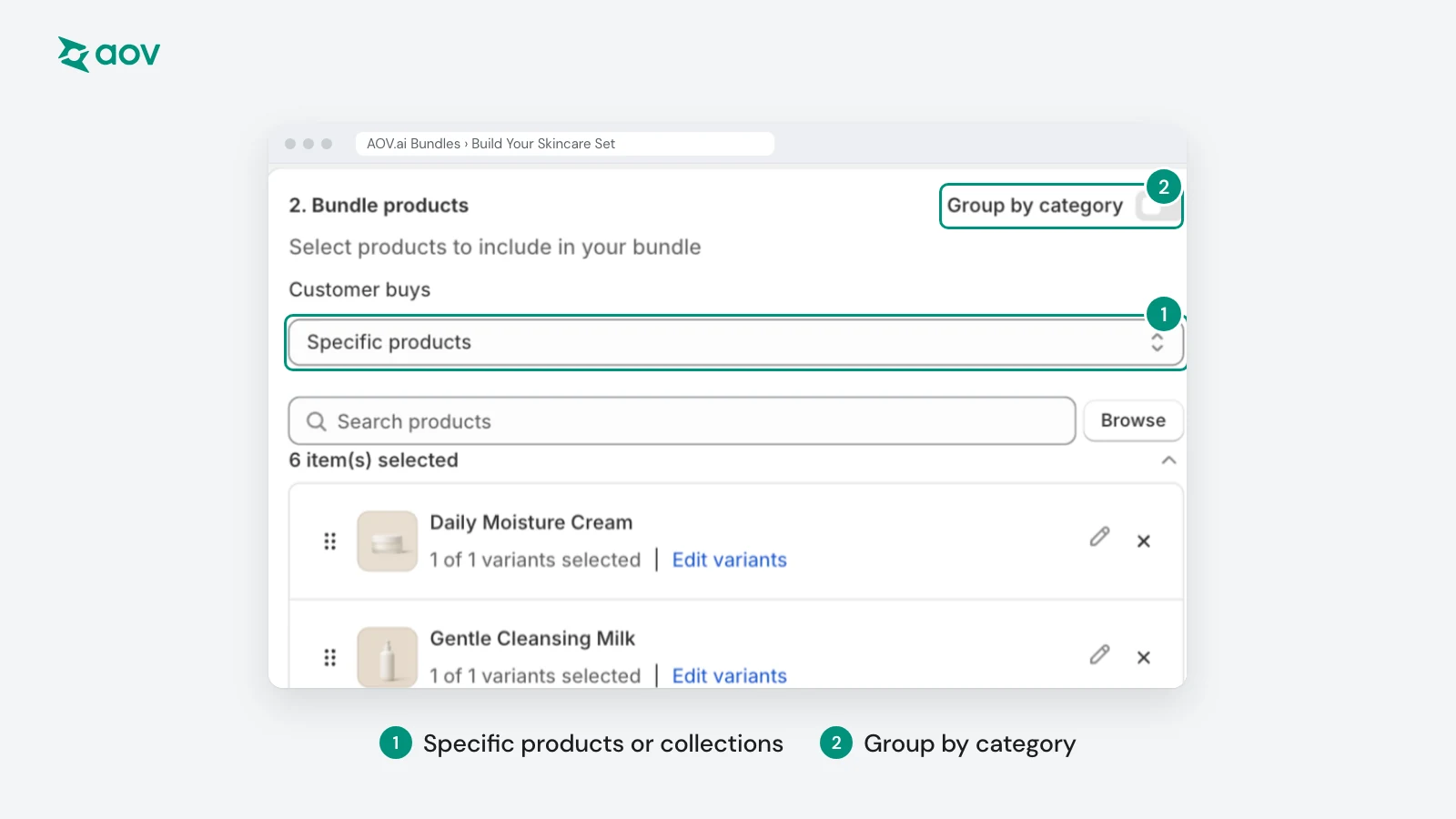
What decides the result. The tiers decide the saving at each step. The widget's Bundle summary shows each tier, such as 1 item and 2 items, with its saving. In a mix and match bundle, customers choose one product per slot. In a Bundle Builder, they pick any products from your list.
Check it. Open the bundle page, add products until you pass a tier, and confirm the discount changes. The help center has the full steps to set up Bundle Builder.
How to Set Up a Volume Discount
A volume discount gives a bigger discount the more units of one product a customer buys. The discount applies automatically when the customer reaches the quantity of a tier.
- Template: after you click Create on the Volume discount card, the Choose a template page opens. Pick Classic Volume Discount and click Use template. You can change the design later.
- Deal name & select products: enter an internal Deal name. Under Trigger when Customer buys, choose All products, a specific product, or a specific collection.
- Discount tier: for each tier, choose the discount type (Percentage, Fixed amount, or None) and the quantity to buy. Click Add tier for more tiers.
- Mix & Match volume discount (optional): this lets customers reach a tier by mixing different products. It is off by default, works only for tiers with a Buy quantity of 2 or more, and isn't available on the Table layout.
- Free gift on a tier (optional): add a gift with + Free gift in a tier. The gift stays in sync with the quantity only when the product was added to the cart through the app's widget.
- Display: click Next: Display setting and choose Vertical, Horizontal, or Table under Select layout widget.
What decides the result. The tiers decide the saving at each quantity, so check your margin at the highest tier before you save. Our guide to quantity discounts explains how to set the tiers.
Check it. Open the product page, choose the second tier, and check that the cart shows the discount. If the widget is missing, add the AOV Volume Discount app block. The help center lists every option to set up a Volume Discount.
How to Set Up Frequently Bought Together
Frequently Bought Together shows a small "Buy it with..." widget on the product page. It suggests products that go with that product, with a discount when the customer buys them all together.
- Deal name & select products: enter an internal Deal name. Under Trigger when, set Customer buys and click Select product to choose the products that show the widget.
- Suggested products: click a card to choose where the suggestions come from: Shopify Recommendation, Same collection, Specific product, Specific collection, or Complementary product.
- Add free gift (optional): when this is on, the gift is added automatically once the customer buys all the suggested products.
- Discount bundle: choose Percentage, Fixed amount, or Fixed total, and enter the value. In the advanced settings, you can keep the trigger product at full price and discount only the suggested items.
- Display: click Next: Display setting. If the notice asks for the app block, click Add app block, add the block in the theme editor, and save. Then choose Classic List, Card Slider, or Stacked Bundle.
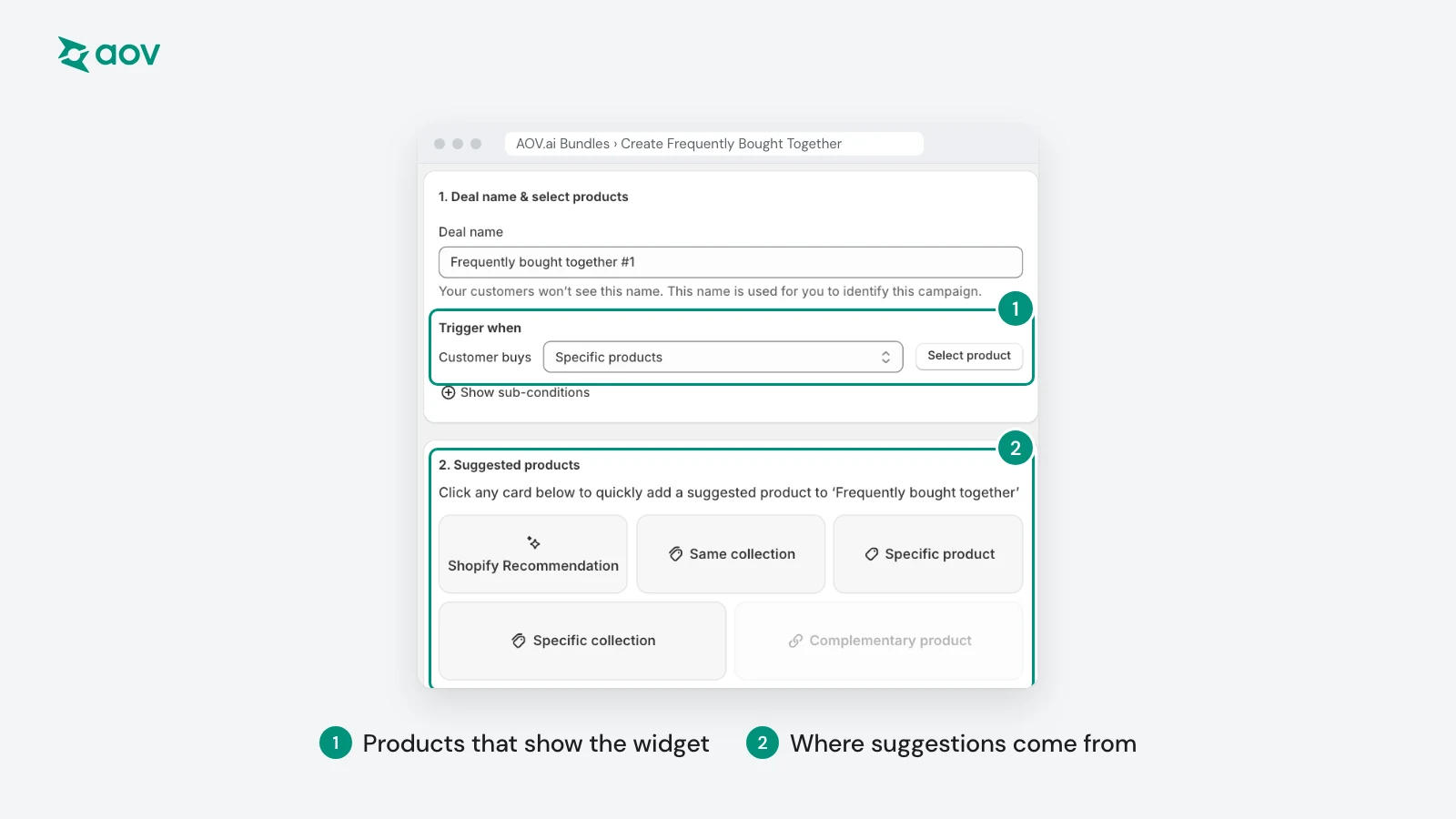
What decides the result. The source of the suggestions decides what customers see. Shopify Recommendation needs order history, and new stores often see no suggestions until they have at least a few dozen orders. Complementary product needs exactly one trigger product, as the FBT setup guide explains. For a new store, a specific product or collection is the safer start.
Check it. Open the page of a trigger product and check that the widget shows the suggested products and the discount. For ideas on what to pair, read our guide to frequently bought together offers.
Why Isn't My Bundle Showing on My Store?
A bundle usually doesn't show because a theme setting, a link, or the offer status is missing. The table matches what you see on your store to the cause and the next step.
| What you see | Likely cause | What to do |
|---|---|---|
| No widget on any page | The app embed is off; the App embed card shows Inactive | Click Enable App, turn on AOV Bundle, and save the theme |
| No widget for one offer type | The app block is missing; its status reads Not installed | Click Add block or Add app block from the widget settings |
| Customers can't find a bundle page | Nothing links to the page of the fixed bundle, mix and match, or Bundle Builder | Link the page from your menu, homepage, or product pages |
| The fixed bundle doesn't show | The status is Draft, or a product in it is out of stock | Set the status to Active and add stock for the product |
| The discount doesn't apply | The offer isn't Active, the time is outside its schedule, or another discount can't combine with it | Check the status, the schedule, and the Combinations settings |
| Nothing shows on your store | The theme is a vintage theme | Move to an Online Store 2.0 theme |
If the problem stays, the AOV.ai support team answers on 24/7 live chat.
Once your first offer is live, you can add the other types one at a time and check each on your store. To try it on your own products, install the app from the Shopify App Store.
Sell kits, packs, and quantity breaks from one app
AOV.ai Bundles for Shopify
Install AOV.ai Bundles
Frequently Asked Questions
Can I Run Volume Discount and FBT on the Same Product?
Yes. AOV.ai Bundles runs any combination of offer types at the same time, and Volume Discount and FBT on the same product is supported.
Does AOV.ai Bundles Work With My Theme?
AOV.ai Bundles works with Online Store 2.0 themes, such as Dawn and Horizon. On a vintage theme, a bundle will not show on your store.
Where Do Mix and Match Bundles Appear on My Store?
A mix and match bundle in AOV.ai Bundles appears on its own bundle page, so link to it from your menu, homepage, or product pages. You can also turn on a small widget on each included product's page that promotes the bundle.
When Does an Offer Go Live?
An offer in AOV.ai Bundles goes live when its status is Active and the current time is inside its schedule. The schedule uses your store's time zone.